

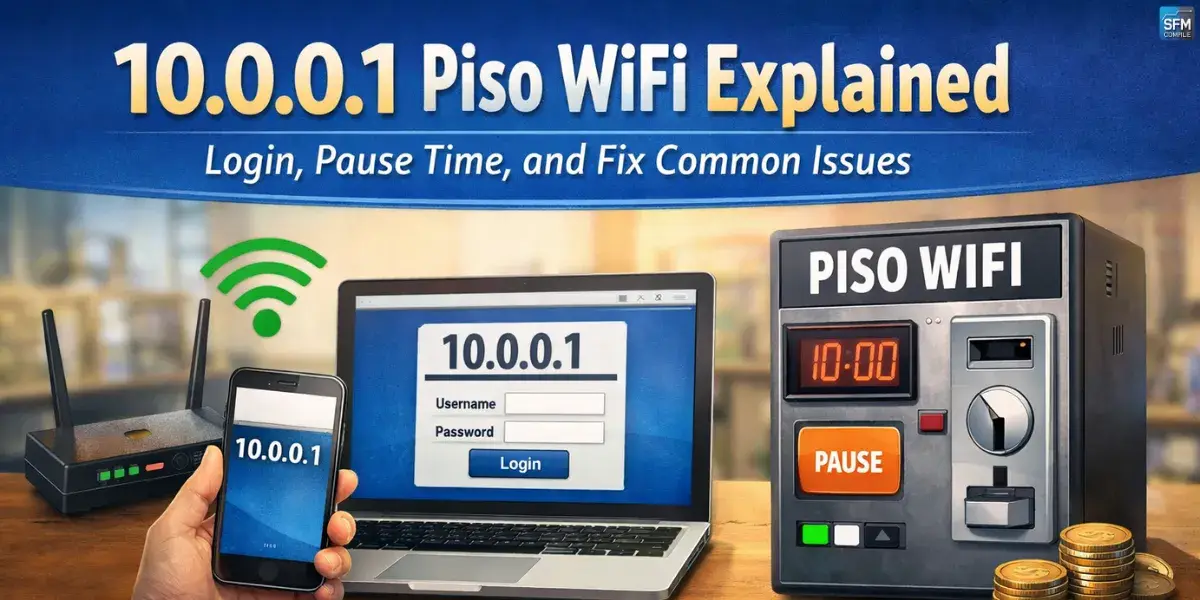
Piso WiFi is a pay-per-use hotspot system that lets people buy internet time using coins, vouchers, or prepaid codes. Many setups use 10.0.0.1 as the local address for the login portal, where users enter codes and manage their session. If you’ve ever connected and got redirected to a simple page, that’s the captive portal doing its job.
Most Piso WiFi networks are built around a router plus a controller or vending module. The system tracks time, limits speeds, and decides who can access the internet. When you’re connected but still blocked, it’s usually because your device is allowed on WiFi, but not yet authorized for internet. That’s why the portal is so important.
This guide walks you through login steps, how “Pause Time” works, and practical fixes for common problems. It’s written for everyday users and also for owners who manage a Piso WiFi machine at home or in a small shop. No complicated jargon, just clear actions you can try right away.
What 10.0.0.1 Piso WiFi Is and How It Works
10.0.0.1 is a private, local IP address often used by routers and Piso WiFi portals. When you connect to the hotspot, your phone or laptop is placed on a local network first. The system then redirects you to a portal page so you can purchase time or enter a voucher. Once approved, it opens internet access for your device until your paid time ends.
Why 10.0.0.1 shows up on your browser
Your device tries to access the internet, but the hotspot intercepts that request and sends you to the portal instead. This redirection usually points to 10.0.0.1 because it’s inside the local network, not the public internet. If the portal is working, you’ll see a login page quickly. If it loads slowly or not at all, the issue is often DNS, cache, or a router setting.
What the portal controls during your session
The portal isn’t just a login screen, it’s the “gatekeeper” for your connection. It tracks your remaining minutes, can enforce speed limits, and can block certain traffic depending on how the owner configured it. Some portals also show a pause button, a status screen, and rules like “one device per code.” Your device stays connected to WiFi either way.
Quick Login Guide for Users
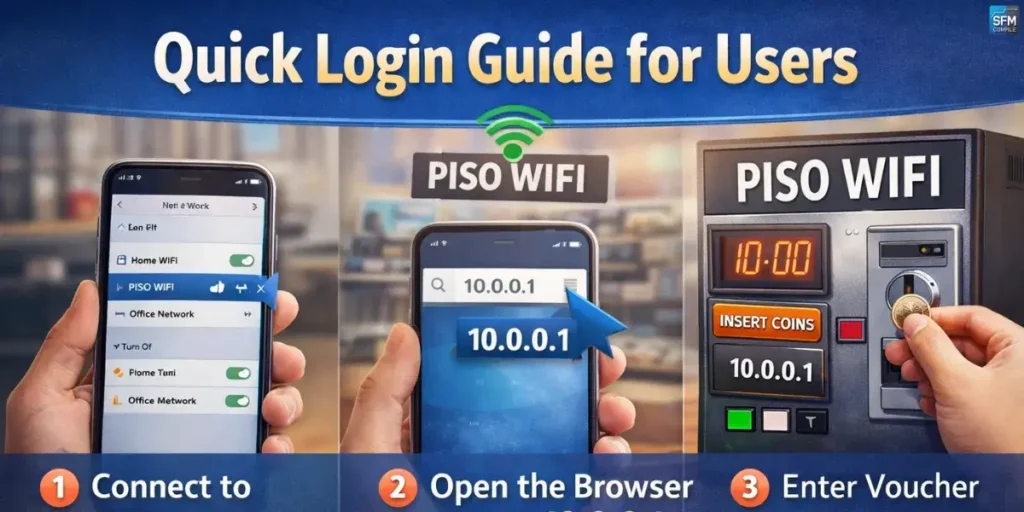
Logging into Piso WiFi is usually fast, but small device settings can get in the way. The key idea is simple: connect to the hotspot, open the portal, and then activate your time by inserting coins or entering a voucher. If your phone keeps switching to mobile data, the portal may not appear, even though WiFi is connected.
Step-by-step login (works on most phones)
First, connect to the Piso WiFi SSID (the WiFi name). Turn off mobile data for a minute so your phone doesn’t “escape” to cellular. Open a browser and type 10.0.0.1 in the address bar, then load the page. Enter your voucher code or follow the on-screen prompt after inserting coins. Once activated, test with a simple website.
If the portal doesn’t pop up automatically
Some phones don’t trigger the captive portal page, especially if you’ve used that WiFi before. Try “Forget network,” reconnect, and open the browser again. You can also try opening any non-HTTPS site, because HTTPS sometimes blocks redirection. If you see a blank page, clear the browser cache or switch to another browser installed on your phone.
10.0.0.1 WiFi Access Made Simple: A Beginner-Friendly Breakdown
Understanding Pause Time
“Pause Time” is a feature that lets users temporarily stop their countdown and resume later, without losing paid minutes. Not every Piso WiFi supports it, and some owners disable it to avoid misuse. If it’s available, it can be helpful when you need to step away and don’t want your time running while you’re not using the internet.
What Pause Time really does (and what it doesn’t)
Pause Time usually freezes your remaining minutes on the hotspot system. It does not improve speed, fix connection issues, or extend expiry beyond the owner’s rules. Some setups allow pausing only once per session, while others allow multiple pauses with a cooldown. If the pause button is missing, it’s likely disabled or not supported by that portal version.
How to pause and resume without losing access
Open the portal page while you’re still connected to the same Piso WiFi network. Tap the Pause option, confirm, and wait for the status to update. When you’re ready, reconnect to the same WiFi and return to 10.0.0.1 to resume. If resuming fails, it may be because your device MAC changed or your session was reset by the router.
Owner Basics: Portal and Router Settings
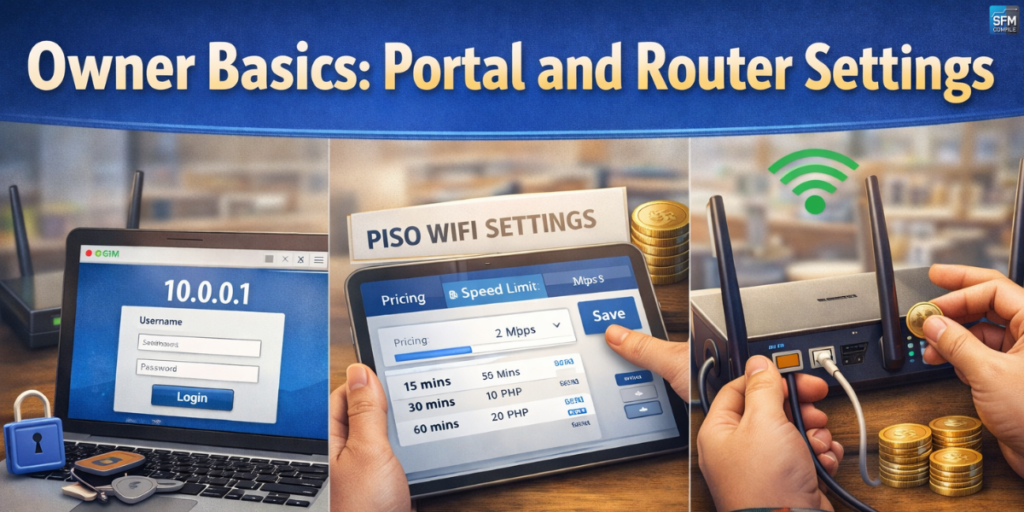
If you manage the Piso WiFi system, most daily issues come from router settings, DNS behavior, or outdated firmware. Owners typically configure network name, password, pricing, and session rules from an admin page. Keep changes simple and document what you modified, because one wrong toggle can break captive portal redirection for every user.
Accessing admin settings safely
Only log into the admin panel from a trusted device you control. Use the router’s correct admin IP (sometimes 10.0.0.1, sometimes another local address) and keep the admin password strong. Avoid leaving default credentials in place, especially in public locations. If possible, change the admin page path or restrict admin access to one device to reduce tampering risks.
Setting rates, limits, and fair-use rules
Pricing and time rules should match your internet speed and expected crowd. If you set unlimited speeds, one user can saturate the line and make everyone feel “slow.” Good setups define per-user bandwidth, session timeouts, and device limits. Also consider idle time rules so inactive devices don’t consume sessions forever. Small, consistent settings usually work better than aggressive restrictions.
Quick mid-article checks (useful for users and owners):
- Turn off mobile data briefly so the portal can redirect correctly.
- “Forget” the WiFi network, reconnect, and try loading 10.0.0.1 again.
- Clear browser cache or switch to another browser if the portal is blank.
- Restart the router/controller if everyone is affected, not just one device.
- Test with one known-good phone to separate device issues from network issues.
Fix Common Issues: 10.0.0.1 Not Working, No Internet, Slow Speed
Most problems fall into three buckets: you can’t open the portal, you can open it but still have no internet, or the connection works but feels slow and unstable. Solve it step-by-step instead of changing everything at once. Start by confirming whether the issue affects only your device or everyone connected to the hotspot.
Can’t reach 10.0.0.1 at all
If 10.0.0.1 won’t load, confirm you’re connected to the Piso WiFi network and not a nearby similar name. Turn off VPN apps and private DNS settings, because they can block portal redirection. Try another browser, then restart WiFi on your phone. If multiple devices can’t load it, the router portal service may be down and needs a reboot.
Connected to WiFi but “No Internet”
This often happens when you’re connected locally but not authorized for internet yet. Open the portal and check if your time is active or expired. If you paid but still see “not connected,” disconnect and reconnect to refresh your session. Owners should check WAN status, ISP uptime, and whether the router’s DNS settings are working properly for captive portal flow.
Slow speed, buffering, and frequent disconnections
Slow Piso WiFi is usually congestion, weak signal, or strict bandwidth limits. Move closer to the router or access point and avoid obstacles like thick walls. If the hotspot is busy, speeds can drop for everyone, even if your device is fine. Owners can improve experience by adding access points, setting fair per-user limits, and scheduling router restarts if needed.
Common problems and quick fixes
| Problem | Likely cause | Quick fix |
| 10.0.0.1 won’t open | Wrong WiFi, VPN/private DNS, portal service down | Reconnect, disable VPN/DNS, try another browser, reboot router |
| Paid but no time added | Coin slot jam, controller delay, voucher error | Reinsert carefully, wait 1–2 minutes, contact owner, check logs |
| Connected but no browsing | Session not authorized, WAN/DNS issue | Open portal, refresh session, owner checks ISP/WAN/DNS |
| Very slow internet | Too many users, weak signal, rate limits | Move closer, reconnect, owner sets fair limits or adds AP |
Payment and Time Activation Problems
When coins are involved, mechanical and timing issues can happen. Sometimes the machine accepts a coin but the controller doesn’t register it immediately, especially if the coin slot is dirty or misaligned. Voucher-based systems can also fail if codes are expired, typed incorrectly, or restricted to one device at a time.
Coins accepted but no time is credited
Wait a short moment because some systems update time with a delay. If nothing changes, disconnect and reload the portal to refresh the balance display. Owners should check coin slot alignment, sensor cleanliness, and the controller’s connection to the router. A loose cable can cause “coin accepted” behavior without proper time crediting, which frustrates users fast.
Time credited, but internet is still blocked
If the portal shows time but pages won’t load, your session may not have been applied to your device ID. Reconnect to the WiFi and open the portal again to force session sync. If your phone uses randomized MAC addresses, it can look like a new device each time. Turn off MAC randomization for that network if the system requires consistent device identity.
Security, Privacy, and Safe Use Tips
Piso WiFi is a shared network, so basic caution matters. The login portal should look simple and consistent, but fake portals do exist, especially if someone sets up a similarly named WiFi nearby. You don’t need to panic, just use common sense: avoid entering sensitive passwords while on public WiFi, and don’t install random apps “to fix” the internet.
Avoid fake portals and common scams
Only use the portal that appears after connecting to the official SSID, and confirm the address is the expected local page. If a portal asks for personal details like email passwords, bank info, or phone OTP codes, leave immediately. Legit Piso WiFi portals typically ask only for a voucher code, a pause/resume action, or simple session status information.
Protect your device while connected
Use HTTPS websites and keep file sharing turned off on laptops. Don’t do banking or sensitive logins unless you’re using your own mobile data or a trusted VPN you control. Also, keep your phone’s system updated, because updates patch WiFi-related vulnerabilities. When you’re done, forget the network so your device doesn’t auto-connect next time without you noticing.
Conclusion
10.0.0.1 Piso WiFi systems are designed to be simple: connect, open the portal, activate time, and browse. When things go wrong, it’s usually a portal redirection issue, a session authorization hiccup, or a network slowdown caused by signal and congestion. Fixes are often straightforward if you isolate whether the problem is your device or the hotspot itself.
For owners, stability comes from clean settings, fair bandwidth controls, and basic maintenance of router, controller, and coin slot hardware. For users, the biggest wins are turning off mobile data briefly, using the browser to open 10.0.0.1, and reconnecting to refresh sessions. With these habits, most daily Piso WiFi headaches disappear.
Why does 10.0.0.1 Piso WiFi not open on my phone?
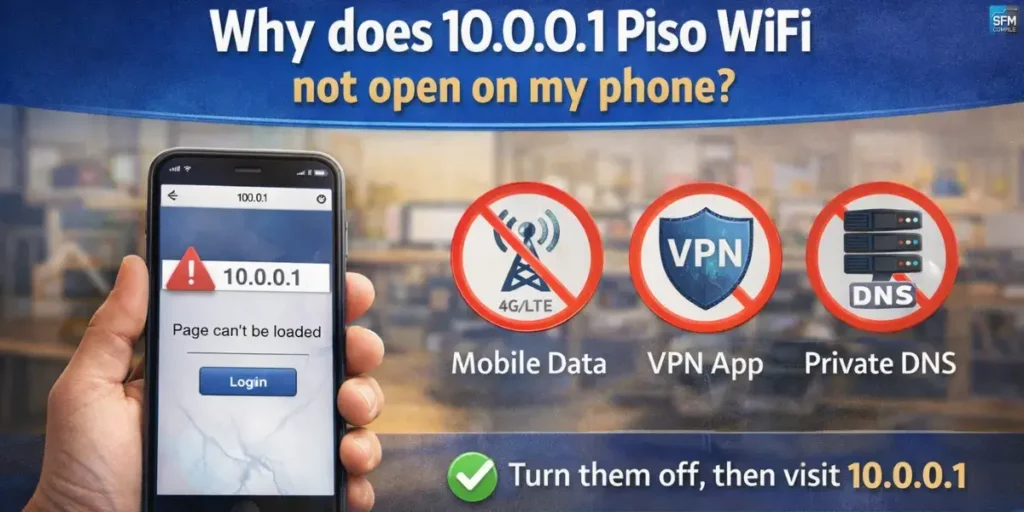
It usually happens because your phone is using mobile data, a VPN, or private DNS, so the captive portal can’t redirect you. Turn off mobile data for a minute, disable VPN/private DNS, forget the WiFi network, then reconnect. Open a browser and manually Type 10.0.0.1 to force the portal to load.
What is Pause Time, and why don’t I see it?
Pause Time is a feature that temporarily stops your session countdown so you can resume later. Many Piso WiFi owners disable it, or the portal version doesn’t support it. If you don’t see a pause button, it’s likely not available on that hotspot. You can still use your time normally until it expires.
I inserted coins but my time didn’t increase. What should I do?
First, wait briefly and reload the portal page because some systems update with a delay. If time still doesn’t show, disconnect and reconnect to refresh the session display. If it’s a public hotspot, notify the owner with the exact time and coin amount. Owners should inspect the coin slot sensor and controller connection.
The portal shows time, but I still can’t browse. Why?
This can happen when your device session didn’t sync correctly, or your phone changed its device identity (MAC randomization). Try disconnecting and reconnecting, then open 10.0.0.1 again to refresh authorization. If you’re an owner, check WAN/DNS health and confirm the user is being placed in the correct “allowed” client group.
Is it safe to use Piso WiFi for passwords and banking?
It’s safer to avoid sensitive logins on shared WiFi networks. If you must sign in to important accounts, use your mobile data instead, or a trusted VPN you already use and control. Don’t enter OTPs or bank details on suspicious portal pages, and never install unknown apps suggested by random pop-ups claiming to “fix” the WiFi.

I’m Eric Nelson, a professional content writer with over 8 years of experience creating clear, engaging, and well-researched content across multiple digital spaces. I focus on turning complex topics into easy-to-understand stories that inform, entertain, and add real value for readers.
My Experience & Expertise 🚀
Multi-Niche Content Specialist:
Over the years, I’ve written across a wide range of categories including tech, crypto, business, lifestyle, fashion, grooming, celebrities, and breaking news. I specialize in content that feels current, trustworthy, and genuinely useful. 💡
Writer, Researcher & Trend Analyst ✍️
As an author at SFMCompilee.com, I cover:
Tech insights & explainers 💻
Crypto & business trends 📊
Lifestyle, fashion & grooming guides 👔
Celebrity stories & trending topics 🌟
In-depth reviews and practical guides 🧭
I write with a balance of research, experience, and reader-first thinking, making sure every piece is informative, engaging, and easy to follow without unnecessary fluff.