

Getting into your WiFi router settings can feel intimidating, but it’s usually just a local login page. 10.0.0.1 is a common “gateway” address used by many routers and internet devices so you can manage your network from a phone or computer. Once you know the steps, it becomes as routine as checking your email.
This guide breaks down what 10.0.0.1 is, when you should use it, and how to log in without messing anything up. You’ll also learn beginner-safe changes that improve speed, coverage, and security. If something goes wrong, you’ll have simple troubleshooting steps that work for most home setups.
By the end, you’ll be able to rename your WiFi, change the password, kick unknown devices, and fix common connection issues. You don’t need advanced tech skills, just a little patience and a clear checklist. Let’s walk through it like you’re doing it for the first time, because that’s exactly the point.
Understanding 10.0.0.1 and Why It Matters
10.0.0.1 is a private IP address often used as a router’s default gateway. It’s not a website on the internet. It’s a local address that only works when your device is connected to that router’s network. When you type it in a browser, you’re asking the router to show its admin login page.
Private IP vs Public IP
Private IPs live inside your home or office network and aren’t reachable from the public internet. That’s why 10.0.0.1 works only when you’re connected to the router’s WiFi or Ethernet. Your public IP is what the outside world sees, but the router keeps private addresses for internal devices like phones, laptops, and smart TVs.
What “Default Gateway” Means
Your default gateway is the device that sends your traffic out to the internet, usually your router. It also routes traffic between devices inside your network. When 10.0.0.1 is your gateway, it’s the “front door” to router controls. Think of it like the control panel for WiFi name, password, security, and performance settings.
What You Can Do on the Router Admin Page
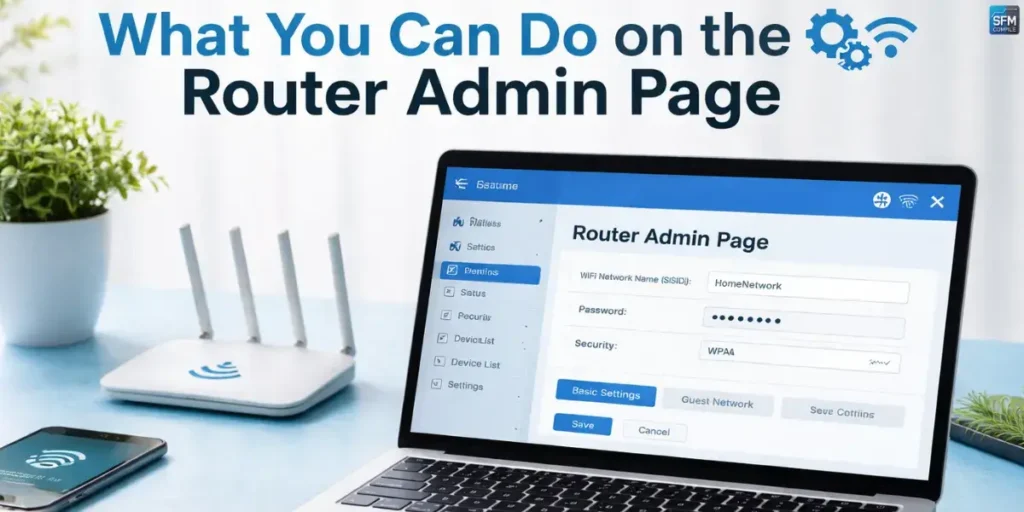
The admin page is where you manage your WiFi and network rules. Some settings are simple and safe, while others can disrupt your connection if changed blindly. As a beginner, focus on identity, passwords, security modes, and basic performance tweaks. Those changes give the most benefit with the least risk.
Common Settings You’ll See
Most routers organize features into tabs like Wireless, Security, LAN, WAN, and Administration. The names vary, but the basics are the same. You’ll see options for WiFi network name, password, encryption type, connected device list, and reboot tools. Many routers also show signal tools, guest network controls, and firmware update sections.
Changes Beginners Should Avoid at First
Some settings can break internet access instantly if you’re not sure what they mean. Avoid changes to WAN type, VLAN, bridge mode, MAC cloning, advanced routing, firewall rules, and port forwarding until you understand them. Also be careful with factory resets, because they wipe everything. Start with safe wins, then level up later.
Also Read This: “Call Center Outsourcing with Garage2Global: Scale Support Without the Overhead“
Prep Checklist Before You Log In
A smooth login starts with a quick setup check. Most issues happen because the device isn’t actually connected to the router, the address is typed wrong, or the browser is auto-searching instead of opening the admin page. Spend one minute preparing and you’ll save yourself ten minutes of frustration.
Confirm You’re on the Right Network
Connect your phone or laptop to the WiFi you want to manage, or plug in an Ethernet cable if possible. If you’re on mobile data or another WiFi, 10.0.0.1 won’t load. Make sure the WiFi signal is strong and you’re not using a VPN. A direct connection usually makes login faster and more reliable.
Gather the Info You Might Need
Have your router login details ready. Sometimes they’re printed on a sticker under the router or on the box. You may need an admin username and password, not the WiFi password. If you changed them before and forgot, you might need to reset the router. Also keep a pen handy to note any changes you make.
Login Walkthrough: Accessing 10.0.0.1 Step by Step
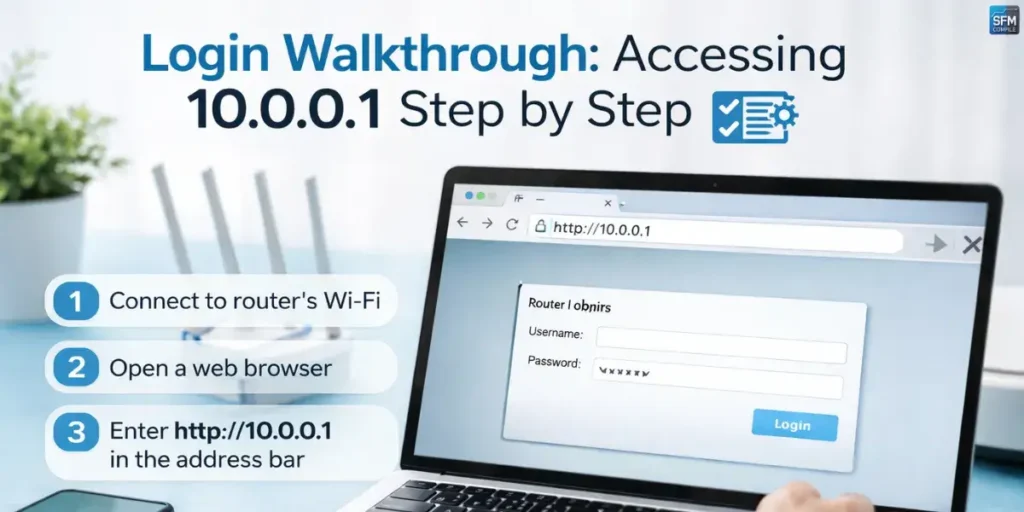
Once you’re connected to the router’s network, logging in is straightforward. The main goal is to open the router’s admin page, enter the correct credentials, and land on the dashboard. If you see a search results page instead, it usually means the browser didn’t treat it as a local address.
Correct Way to Enter the Address
Open a browser and type 10.0.0.1 into the address bar, not the search box. Then press Enter. If it doesn’t load, try typing http://10.0.0.1 exactly. If a login page appears, great. If you get an error, don’t panic, it’s usually a connection or gateway mismatch, not a broken router.
Logging In Without Locking Yourself Out
Enter the admin username and password carefully. If you don’t know them, check the router label or your ISP documentation. Avoid guessing too many times, because some routers temporarily block logins after repeated failures. Once inside, take a moment to locate the “Save” or “Apply” behavior, because some routers require saving each page manually.
Quick mid-article checklist (use this before changing anything):
- Write down your current WiFi name and password
- Screenshot key pages you’re about to edit
- Change one setting at a time, then test WiFi
- Avoid “Reset” unless you truly mean it
- Reboot only after saving your changes
Changing WiFi Name and Password the Right Way
Renaming your WiFi and updating the password are the two most beginner-friendly upgrades. A clear WiFi name helps you pick the right network, and a strong password blocks freeloaders and reduces security risk. After you apply changes, every device will need to reconnect using the new credentials.
Updating the SSID
The WiFi name is usually labeled SSID or “Network Name.” Pick something recognizable but not too personal, like your full name or house number. If your router has separate 2.4GHz and 5GHz networks, you can name them slightly differently so you know which one you’re joining. Save changes and confirm the new name appears on your devices.
Creating a Strong WiFi Password
Use a long password that’s hard to guess but easy for you to store safely. Aim for at least 12–16 characters with a mix of letters and numbers. Avoid common phrases, birthdays, and simple patterns. If your router supports WPA3, use it. Otherwise choose WPA2-AES. After applying, reconnect your phone and test browsing to confirm success.
Improving Speed and Coverage Without Fancy Gear
You can often improve WiFi performance with simple router settings and placement changes. Speed issues aren’t always your internet plan. They can be caused by interference, weak signal zones, overloaded channels, or too many devices competing for airtime. Start with the basics before buying extenders or upgrading hardware.
Best Placement for Stronger Signal
Place the router in a central, open location rather than hidden behind a TV or inside a cabinet. Keep it off the floor and away from thick walls, microwaves, and cordless phone bases. If the router has antennas, angle them to cover multiple directions. Small placement changes can make a big difference in bedrooms and far corners.
Simple Settings That Help Performance
If your router lets you choose channels, use “Auto” first. If the network is crowded, you can manually pick a less busy channel for 2.4GHz. Enable 5GHz for faster speeds near the router, and keep 2.4GHz for longer range. Some routers include QoS, which can prioritize video calls or gaming, but keep it simple at first.
Troubleshooting When 10.0.0.1 Won’t Open
When the login page won’t load, the reason is usually one of three things: wrong network, wrong gateway address, or a browser/network hiccup. Don’t jump straight to resetting. Work through quick checks in order. Most fixes take less than five minutes and don’t require changing any advanced settings.
Fixing “This Site Can’t Be Reached” Errors
First, confirm you’re connected to the router’s WiFi, not another network. Turn off VPN if you use one. Try a different browser or use a private window. Restart the phone or laptop’s WiFi, then try again. If nothing works, reboot the router by unplugging it for 15 seconds and plugging it back in, then wait two minutes.
Finding the Correct Gateway Address
Not every router uses 10.0.0.1. Some use 192.168.0.1 or 192.168.1.1. The safest method is to check your device’s “Default Gateway” and use that address in the browser. On Windows, you can view it in network settings. On phones, it’s usually under WiFi details for the connected network.
| Problem you see | Likely cause | Quick fix | What to avoid |
| Page won’t load | Not on router network | Connect to correct WiFi/Ethernet | Resetting immediately |
| Login fails | Wrong admin password | Check router label/ISP info | Repeated guessing |
| Loads search results | Typed in search bar | Use address bar and add http:// | Assuming router is “down” |
| Works then times out | VPN or unstable WiFi | Disable VPN, move closer | Changing WAN settings |
| Keeps redirecting | Cached page/session | Use private window, clear cache | Factory reset too soon |
| Can’t find gateway | Different router IP | Check default gateway on device | Random IP trial-and-error |
Security and Ongoing Maintenance Best Practices
Once you can access your router reliably, maintenance becomes easy. A few small habits keep your WiFi stable and secure all year. The goal is to prevent unauthorized access, avoid outdated firmware, and keep your settings organized. This is especially important if you share WiFi with guests or use smart home devices.
Lock Down Admin Access
Change the Router Admin Password from the default to something unique. This password protects the control panel, not just the WiFi. If your router supports it, disable remote management unless you truly need it. Keep admin access local only. Also log out after changes, especially if you’re using a shared computer or public device.
Keep Firmware and Settings Healthy
Firmware updates patch security issues and improve stability. Check the router’s update section every few months, or enable automatic updates if available. Back up your router configuration if the option exists, so you can restore settings quickly after a reset. When you make changes, note the date and what you changed, so troubleshooting is easier later.
Conclusion
Accessing 10.0.0.1 isn’t complicated once you know what it is and why it only works on your local network. The biggest wins for beginners are logging in successfully, changing WiFi name and password, improving placement, and choosing secure encryption. If the page won’t open, checking the correct gateway address usually solves it quickly.
Treat your router like a small piece of infrastructure that needs occasional care. Update firmware, protect admin access, and change one setting at a time so you can track results. With these habits, your WiFi becomes more reliable, more secure, and easier to manage, even if you’re not a technical person.
FAQs: 10.0.0.1 WiFi Access Made Simple
Is 10.0.0.1 a real website?
No. It’s a local IP address used to open your router’s admin page. It only works when you’re connected to that router’s network, not when you’re on mobile data or another WiFi.
What if 10.0.0.1 doesn’t work for my router?
Your router may use a different gateway address, like 192.168.0.1 or 192.168.1.1. Check your device’s “Default Gateway” and use that address in your browser.
Is the router admin password the same as the WiFi password?
Usually not. The WiFi password connects devices to the network. The admin password controls router settings. Many routers print default admin credentials on a sticker underneath.
Will changing the WiFi password disconnect everyone?
Yes. After you change it, all devices must reconnect using the new password. It’s normal, and it’s a good way to remove unknown devices from your network.
What’s the safest first setting to change?
Start with WiFi name (SSID), WiFi password, and the admin password. These changes improve security immediately and are unlikely to break your internet if done carefully.

I’m Eric Nelson, a professional content writer with over 8 years of experience creating clear, engaging, and well-researched content across multiple digital spaces. I focus on turning complex topics into easy-to-understand stories that inform, entertain, and add real value for readers.
My Experience & Expertise 🚀
Multi-Niche Content Specialist:
Over the years, I’ve written across a wide range of categories including tech, crypto, business, lifestyle, fashion, grooming, celebrities, and breaking news. I specialize in content that feels current, trustworthy, and genuinely useful. 💡
Writer, Researcher & Trend Analyst ✍️
As an author at SFMCompilee.com, I cover:
Tech insights & explainers 💻
Crypto & business trends 📊
Lifestyle, fashion & grooming guides 👔
Celebrity stories & trending topics 🌟
In-depth reviews and practical guides 🧭
I write with a balance of research, experience, and reader-first thinking, making sure every piece is informative, engaging, and easy to follow without unnecessary fluff.
1 Comment
Pingback: 10.0.0.1 Piso WiFi Explained: Login, Pause Time, And Fix Common Issues